Scrolling screenshots on Windows.
Windows' own Snipping Tool can't take a scrolling screenshot. For a web page, your browser can, in a few clicks. For anything else, like a long chat, a document or a list in an app, you need an app that scrolls for you.
Can Snipping Tool do it?
No. It captures a rectangle, a window, the whole screen or a shape you draw, and records video, but not a page that scrolls. Asked whether Snipping Tool can capture scrolling web pages, Microsoft's own answer is "Not natively".
A web page: use your browser
Microsoft Edge
- Press Ctrl Shift S, or right-click the page and choose Screenshot.
- Choose Capture full page.
- Copy it, draw on it, or save it.
Firefox
- Press Ctrl Shift S, or right-click an empty part of the page and choose Take Screenshot.
- Choose Save full page, at the top right.
- Download it as a PNG, or copy it.
Google Chrome
- Press F12 to open the developer tools.
- Press Ctrl Shift P and type full size.
- Choose Capture full size screenshot. It downloads as a PNG.
Each of these only captures the web page you're on, in that browser. A page that builds itself as you scroll, like a social media feed, can come out short.
Anything else: an app that scrolls for you
A chat in Slack or Teams, a long document, a list in any app: for these you need an app that scrolls the window, takes a picture each time, and stitches them together.
AWNA does it from the notch at the top of your screen, one hover away. Click what you want and it finds the part that scrolls by itself. Headers and buttons that float over the page come out once, not on every screen, and the long picture lands on the Shelf, ready to drag wherever it's going.
ShareX (free), Snagit and PicPick do this too.
With AWNA, step by step
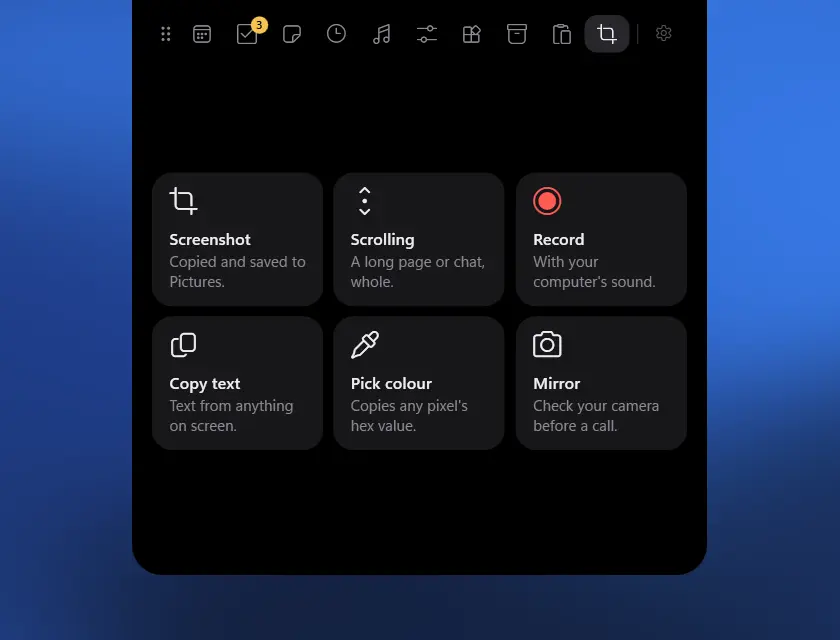
- Rest the mouse on the notch at the top of your screen, and go to Capture.
- Choose Scrolling, then click what you want. AWNA finds the part of the window that scrolls: a browser's page, not its tabs and address bar; a chat's messages, not its sidebar. Or drag across exactly the area you want.
- AWNA scrolls it for you, and the notch counts the screens as it goes. It stops at the end, after about 30 screens, or when you press Esc.
- The long picture is copied, ready to paste, saved to Pictures\Screenshots, and put on the Shelf to drag wherever it's going.
It works in browsers and in apps, anything that scrolls with your mouse wheel, and your pointer stays where you left it. A sidebar that stays put while the page scrolls is cropped off, with the picture as captured kept beside it in case you'd rather have that.
Scrolling screenshots are in AWNA's Capture tab, which comes with a key: £8 once, on up to three PCs, with a full refund within 14 days if it isn't for you. AWNA itself is free to download, and Today, Tasks, Music and the Shelf are free for good.
When it goes wrong
Why does the header repeat down my screenshot?
It stays on screen while the page scrolls, so every part captured has it. Pick just the part that scrolls, below the header. AWNA leaves out anything floating over the page, so it only comes out once.
Why is my scrolling screenshot cut short?
Pages that load more as you scroll, like social media feeds, never really end, so every tool stops somewhere: AWNA after about 30 screens. A browser's full-page capture can also miss what a page hasn't loaded yet. Scroll down once first, so it's there.
Why won't an app scroll for the capture?
Some apps don't scroll when another app asks them to. AWNA then turns the mouse wheel itself, over the area, so keep the pointer still until it's done.
Screenshots, scrolling ones too, from the top of your screen. Windows 10 and 11, no admin rights, nothing uploaded.


Checked 27 October 2026, from Microsoft's, Mozilla's and Google's own help.